How do you export your Instagram saved posts?
There is no export button on the Saved screen. The route is Accounts Center → Your information and permissions → Export your information, where you can tick Saved on its own and ask for JSON. What arrives is a list of permalinks and the date you saved each one, with no captions and no images.
The Saved screen has no export button, no share option and no way to select more than one post. The only official way to get your saved posts out of Instagram is the data download that Meta is obliged to offer you. It works, it is entirely above board, and what it gives you is less than most people expect. Here is the walkthrough and the honest inventory.
Where is the export in Instagram?
Not on the Saved screen, and not where most guides still say it is. It sits in Accounts Center, under Your information and permissions, and it is now called Export your information. Meta’s own help pages still call it “Download your information”; the app has moved on.
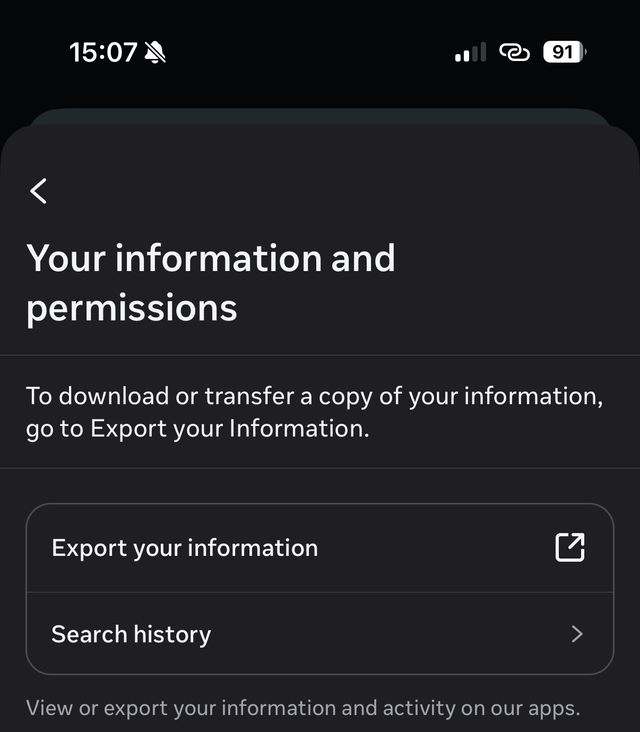
Tapping it opens a web view on accountscenter.instagram.com, so the next few screens
look like a website rather than the app. That is expected.
How to request the file
- Open Instagram, go to your profile, and open the menu in the top-right.
- At the top of Settings and activity, open Accounts Center.
- Choose Your information and permissions, then Export your information.
- Pick the Instagram account, then choose to export to device.
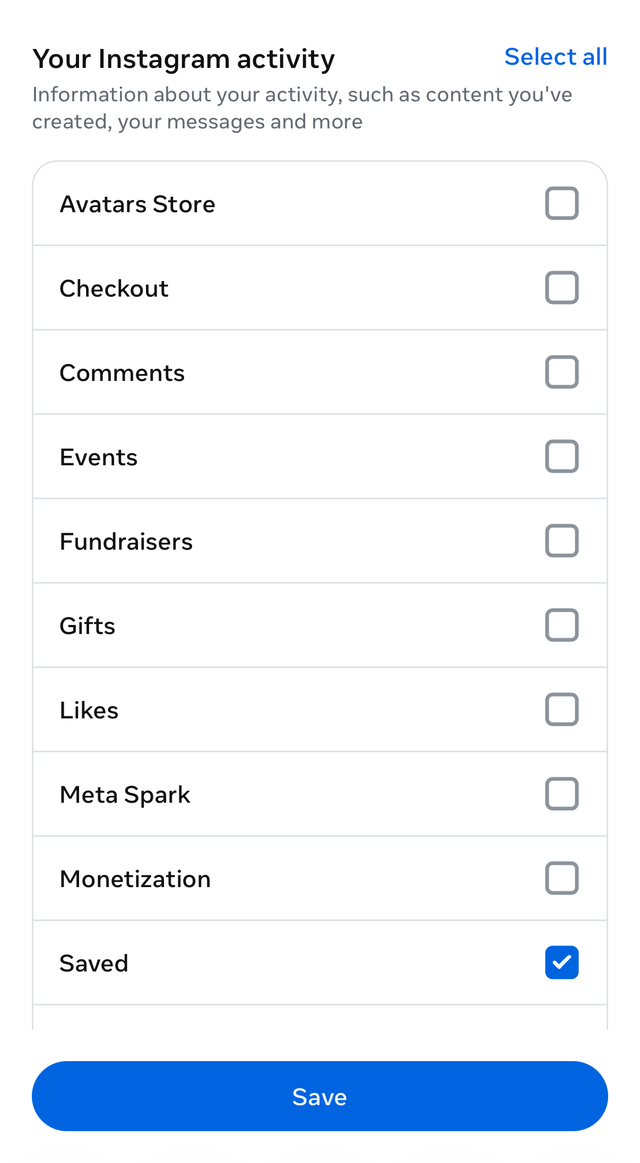
- On the Your Instagram activity screen, leave Select all alone and tick only Saved. Asking for everything turns a small file and a couple of hours into a multi-gigabyte archive and a multi-day wait.
- Set the date range to all time, unless you want a slice.
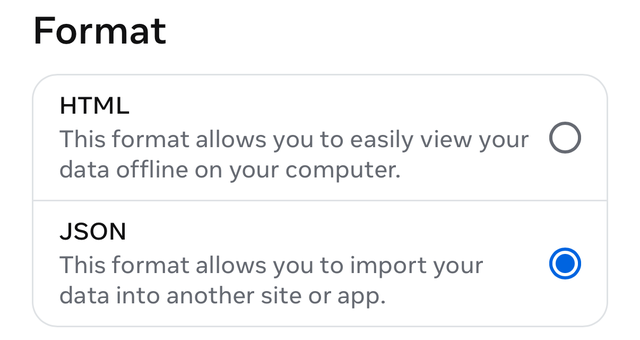
- Set the format to JSON. Meta’s own description of the two options is the clearest summary of the choice: HTML “allows you to easily view your data offline on your computer”, JSON “allows you to import your data into another site or app”.
- Submit, then wait for the email. Download the archive promptly, because the link expires.
You can do all of this at instagram.com as well as in the app, and on a desktop it is considerably less fiddly.
What is actually in the file?
Open the archive and find the saved-posts file. Per saved item you get two things:
- the permalink of the post
- the timestamp of when you saved it
That is the entire record, and it is not Meta being stingy. It is everything Instagram ever stored about your save. A save is a pointer: your account, that post, that moment. The picture and the caption you see in the Saved grid are being fetched live from the original post each time you open it, so they were never yours to export.
Which means the file does not contain:
- the caption
- the image or the video
- the creator’s display name
- the collection you filed it into, in any useful form
If you were hoping for an offline copy of the content itself, this is not that, and no tool can conjure it out of the file. Anything promising to enrich thousands of exported links with AI-written descriptions is either going out and fetching each of those posts or inventing the descriptions. Be suspicious of both.
What the file is good for is the thing the app hides: the timestamps. This is the only way to sort your saves by date, oldest first included, which is covered in how to see your oldest saved posts.
The encoding bug you will hit
If any of your saved content involves accented characters, and Turkish, Spanish, French,
German, Portuguese and Polish all qualify, the text in your export will look mangled.
You will see ö where ö belongs and ç where ç belongs.
Your download is not corrupt. This is UTF-8 text that Meta’s exporter has written out as though it were Latin-1, a bug that has survived years of reports. It is deterministic and therefore reversible: take the string, encode it back to bytes as Latin-1, then decode those bytes as UTF-8, and the accents come back intact.
If you are feeding the file to an importer rather than reading it yourself, this is a good test of whether the importer was built by someone who has actually handled one of these archives. Give it a save with an accented caption and see whether the result reads properly.
What can you do with the list once you have it?
You now own a list of links and dates. That is the skeleton of your archive with none of the meaning, and there are two directions from here.
Backwards. Import the export somewhere that will keep it, and you have a permanent, sortable, searchable-by-URL record that survives Instagram deleting your account or the original posts disappearing. What you will not get retroactively is summaries, because the captions were never in the file.
Forwards. The direction that actually solves the problem, because at the moment you save, the caption is right there on screen. Nemivo sits in your browser, notices Instagram’s own save button being pressed, and keeps that text: a summary, tags, a collection, and search that works on what a post is about rather than who posted it. It also imports the export, so your old saves come along as links while your new ones arrive with their meaning attached.
The limit, stated plainly: what gets read is the text a save carries, its caption and title, never the video or the image. How it works sets out exactly where that line falls, and the Instagram page shows the flow for this platform.
Answers to the rest of it
- How long does the Instagram data download take?
- Usually a few hours for a request limited to saved posts, and up to a few days if you asked for everything including photos and videos. Meta emails you when the file is ready and the link expires after a few days, so download it when the mail arrives.
- Should I choose JSON or HTML?
- JSON if any tool is going to read the file, because it is structured data. HTML if you only want to click through it yourself in a browser. Both contain the same saved-post information.
- Does the export include the captions of my saved posts?
- No. Saved posts come out as the permalink plus the timestamp of when you saved them. The caption, the image, the video and the creator’s display name are not in the file, because Instagram never stored them as part of your save in the first place.
- Why is the text in my export full of strange characters?
- Meta’s exporter writes UTF-8 text as though it were Latin-1, so accented characters arrive scrambled: ö where ö should be, ç where ç should be. It is a long-standing bug in the export rather than damage to your download, and it is reversible by re-encoding the text back through Latin-1 and decoding it as UTF-8.
- Is exporting my saved posts allowed?
- Yes. This is Meta’s own tool, built to satisfy data-portability rights under laws like the GDPR. You are asking for a copy of your own account information through the route Meta provides for exactly that.
- Can I export just my saved posts instead of everything?
- Yes, and you should. On the Your Instagram activity screen there is a category called Saved with its own checkbox, so you can request that alone rather than your full account. It turns a multi-gigabyte archive and a multi-day wait into a small file and a couple of hours.
- Why is it called Export your information and not Download your information?
- Because Meta renamed it. The tool now sits in Accounts Center under Your information and permissions and is labelled Export your information, while Meta’s own help pages still describe it as Download your information. Both refer to the same thing.
- What can I import my Instagram export into?
- Nemivo reads Meta’s export file directly, including reversing the accent-mangling bug, and turns it into a library you own with the link and the date for every save. Be clear about the ceiling: the export has no captions, so imported saves arrive as links rather than summaries. Posts you save from that point on are captured with their caption and get the summary, tags and search.
Sources
- Instagram Help Center: Review and export a copy of your Instagram information
- Instagram Help Center: Information available to download from your Instagram profile
- Instagram Help Center: About Accounts Center
- Instagram Help Center: Save posts you see on Instagram
The steps here were walked in the Instagram app on August 5, 2026, and the screenshots come from that run. Meta renames these screens often, and rolls changes out to accounts at different times, so yours may differ. If it does, we would rather know than have you work around it: tell us.